
Narration to the video may be the key to the way your audiences perceive your materials. Regardless of whether you are recording tutorials, presentations, or social media excerpts, voiceovers help add a personal element that text could not convey. The issue with this is that not everybody is comfortable with their voice, as well as employing voice actors can be cost-prohibitive and time-consuming. Luckily, the AI Voice Generator feature that CapCut Desktop Video Editor provides will help address the issue. It enables you to create a realistic narration out of the written text in several simple steps.
In this article, we will take a step-by-step process on the usage of CapCut Text-to-Speech. You will also know how simple it is to move from typing your script to exporting a finished video of high quality.
Why Use CapCut for Narration?
CapCut Desktop Video Editor takes a different approach to AI-driven editing tools, where other video editors embed them directly into editing workspaces. It implies that you will not require different applications to make narration or improve visuals. The process, including the writing of your script to finishing the final video, occurs in one location. And this is the reason why CapCut can be a great idea for students, marketers, instructors, and creators, because people only need a professional-looking video, but not the other added work.
Benefits of Using Text-to-Speech in CapCut
Saves time and effort – no need to have a recording device, numerous retakes. Type your script or scribble it in the adapter with a few clicks, and the first-rate sounding narration is ready to be used.
Cost-effective – saves one the cost of obtaining professional voice artists. This particularly renders it an invaluable tool to small businesses, students, or any other individual creators who wish to have professional results without incurring additional cost.
Variety of voices – Select voices including all kinds of tones, accents, and genders. CapCut provides options to choose from, whether you are looking to use a friendly or casual tone in your social media presence or a more formal approach to a presentation.
Professional quality – The voices created with the help of AI are natural and compelling. They are not made to be robotic sounding, and your narration will flow nicely and be easy to follow by the audience.
Seamless integration – The narration is instantly included in your timeline as audio. That is, you do not need to import files separately or mess with syncing, which makes the entire editing process rather effective.
Accessibility for all creators – Text-to-Speech can be of significant help to individuals who are timid about reading aloud or lack speech to utilize. It provides all people with an equal opportunity to make quality videos.
Consistency across projects – when creating a series of videos, the AI voices can assist in making each video sound the same and have the same quality, which is particularly useful with branding.
Step By Step: How To Transform Text Into Narration
Step 1: Launch CapCut and Import Your Media
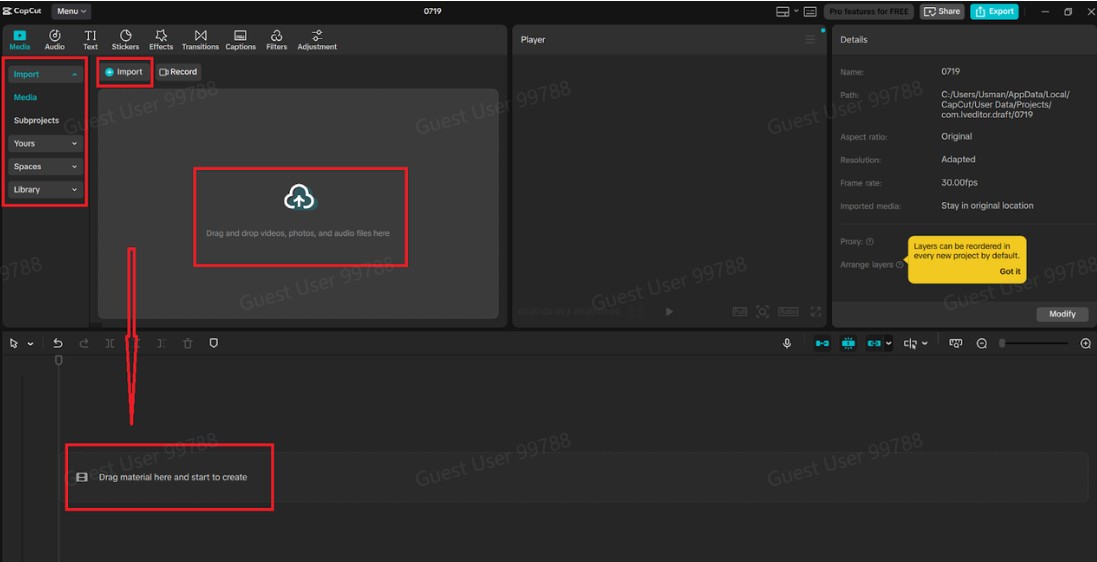
Go to the computer and launch CapCut Desktop. Launch the main screen and select the menu tab New project. Next, use the import button in the Media panel to upload the video clips, images, or background music. Once imported, you can drag and drop your files on the timeline at the bottom. This preconditions your project and prepares it for further addition of narration.
Step 2: Add Text for Narration
After preparing your media, you can now get to type in the script that you would like to turn into speech. To do so, use “Text” in the top menu, and take a step forward to select “Add text”. A text box will open in which you will be able to write your narration directly within CapCut. Although this text will not remain in the final video, it will form the script, which will be converted to audio later on.

Step 3: Convert Text into Speech
Now comes the exciting part—turning your written script into narration using Text to Speech AI. In this step, you need to click on the text layer in your timeline. Choose the option of text-to-speech in the right-side Text panel. This gives you a range to select different AI voices, which can be professional male voices to casual female pitches.
Sample through the various possibilities until the right choice that fits your video is found, and then click the option icon (Generate). The informative narration of your choice will be downloaded on your timeline as an audio that is synced with the media.

Step 4: Edit and Adjust the Audio
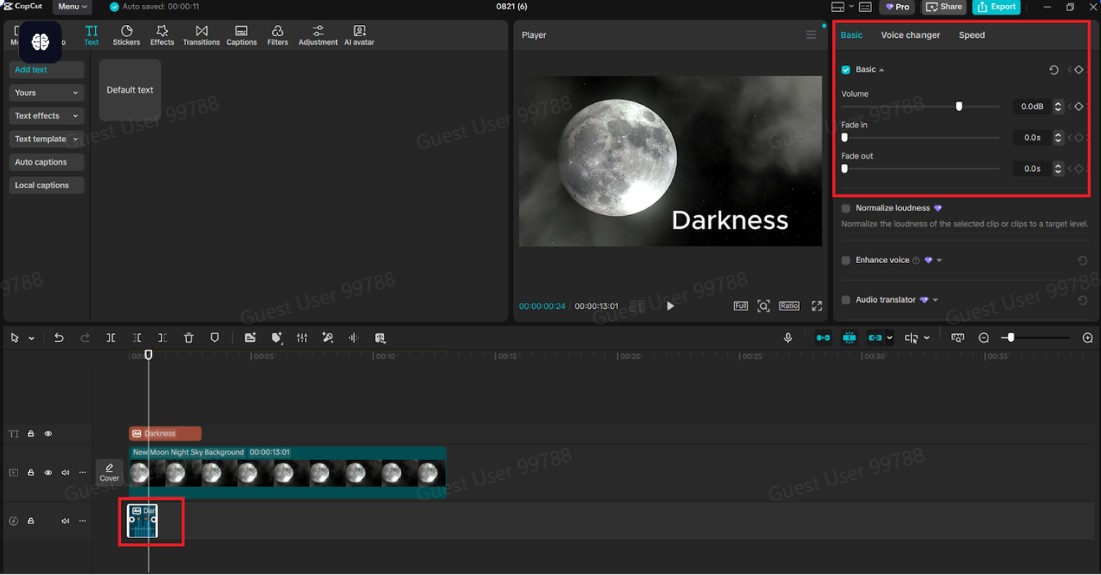
When the narration is created, you can make quick edits on the audio track of the timeline by clicking on the audio. You may adjust the volume, put on fade effects, drag the clip, and synchronize it with visuals. When it comes to sharper results, use CapCut AI Video Upscaler when you need it.
Step 5: Export Your Final Video
When all seems to be correct, click the” Export” button on the top-right. Choose your file name, resolution, and format, then click on export again. CapCut will cut out your video and save you a file with a professional voice-over.

Tips for Better Narration with CapCut
Keep scripts simple – the shorter and clearer the sentences are, the easier the narration runs.
Preview different voices – use various tones to help you determine which suits your video tone.
Balance background sound – manage music and voice volumes in a way that makes the narration flow.
Use fade effects – Use fade effects to add fade-in and fade-out to the presentation of the narration and images.
Align carefully – drag your narration track until it aligns with the exact content of your video.
Final Thoughts
CapCut’s Text-to-Speech feature shows just how far video editing tools have come. How advanced video editing apps can get. Previously, only high-tech equipment or expensive outsourcing was needed to do what is today accessible to anyone with the touch of a button. It takes just a few steps to open your project, and it only takes a few clicks to export a finished video. With the help of the scriptwriter, the new resource can help make professional videos without voiceovers even more engaging thanks to the AI Voice Generator, Text-to-Speech AI, and AI Video Upscaler tools.
